GitLab
Manage the GitLab token and connection
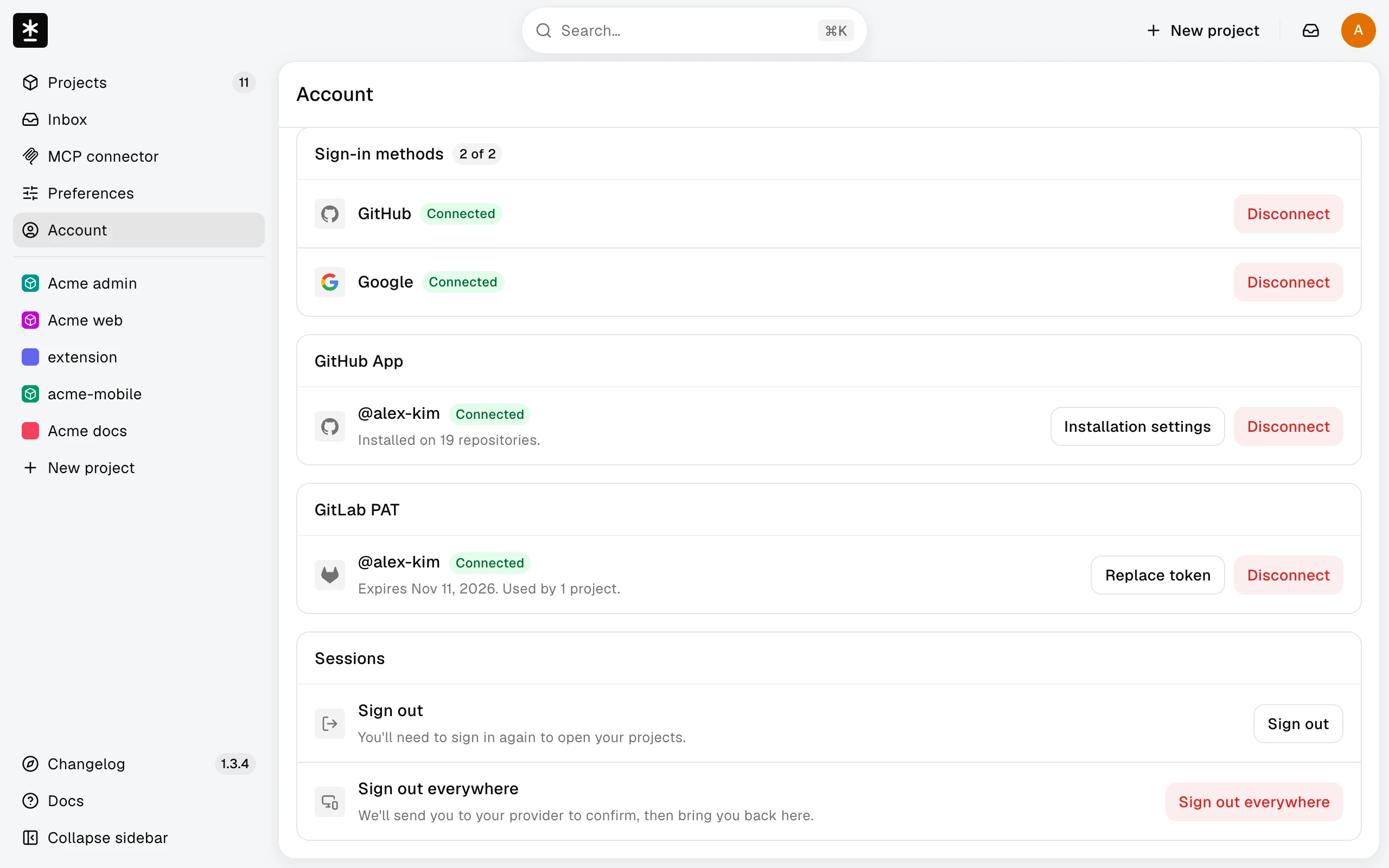
Replace your GitLab personal access token or disconnect it from Account.
Before you start: Open your avatar menu at the top right and choose Account.
Manage the GitLab token
Project owners who use GitLab.com repositories connect a GitLab personal access token in the GitLab PAT section. Translators can skip this section.
- If no token is connected, choose Create a token in GitLab, create a legacy personal access token with the
apiscope there, paste it into Personal access token, and choose Connect. - Check the badge: Connected, Expires soon when the token expires within 14 days, or Expired. The section also shows the expiry date and how many projects use this connection. Within 14 days of expiry, a notice at the top of the section says how many days are left.
- To renew the token, choose Replace token and paste a new token for the same GitLab account. Projects that use this connection switch to it right away. A token from a different GitLab account is rejected; to switch accounts, disconnect first.
Choosing Disconnect deletes the saved token from Malmoi. Projects that used it show Disconnected and stop syncing and publishing until a project owner reconnects them in project Settings, and Logs records that the connection was removed. Disconnecting in Malmoi doesn't revoke the token in GitLab; revoke it there if you no longer need it.
Projects you connect publish with your token, so their commits and merge requests on GitLab are attributed to your GitLab account.
What happens next
Return to your project. If access still fails, see Troubleshoot GitLab.