GitHub
Troubleshoot GitHub
Find the next step when GitHub access, the workflow, or a repository update fails.
Restore GitHub access
If your GitHub authorization expired, open Account and choose Reauthorize GitHub App. Sign-in methods and repository access are separate.
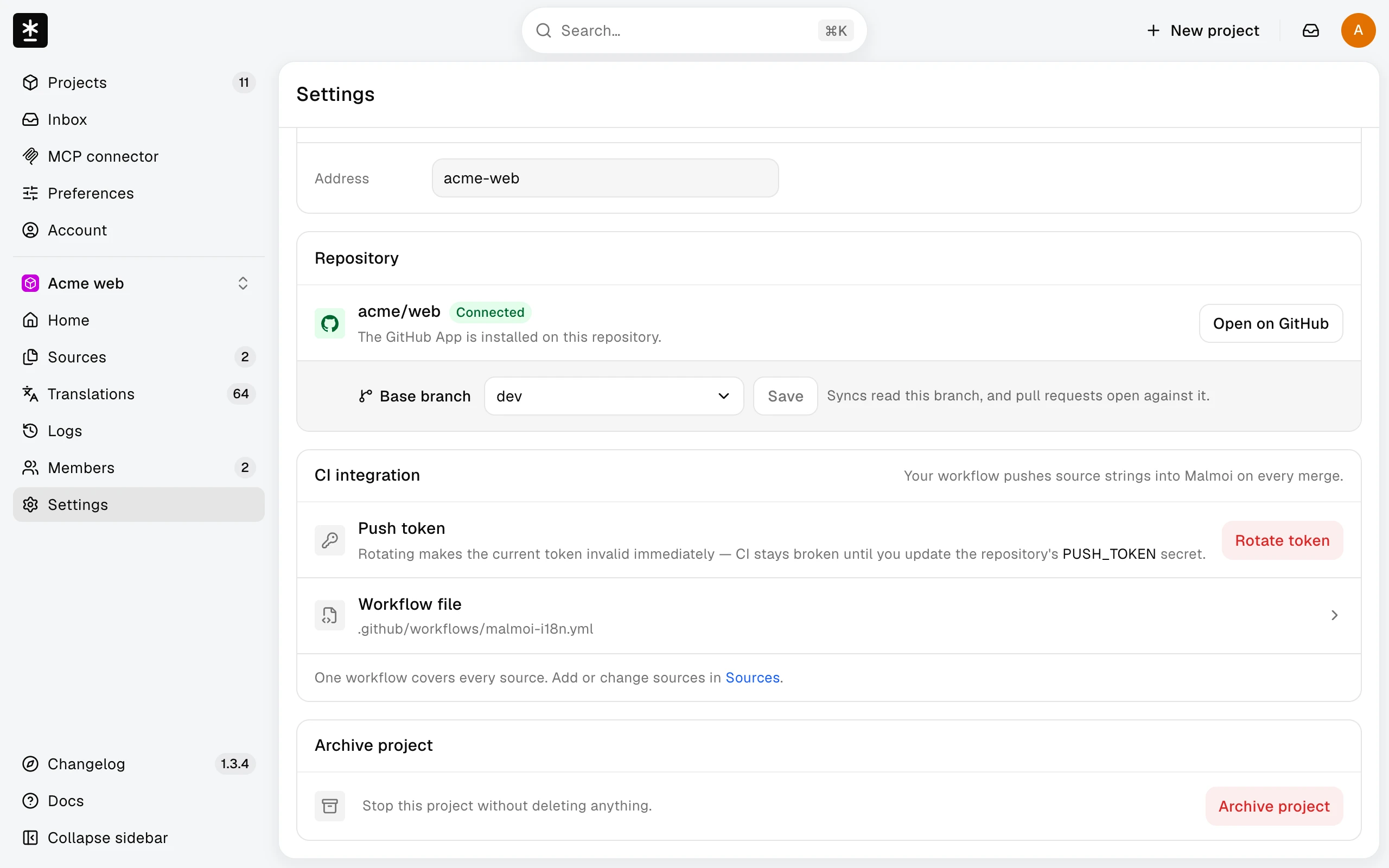
Project Settings shows the repository connection as a badge, and each badge has its own next step:
- Disconnected — syncs and publishes stop until it's reconnected. Choose Reconnect. If the app was removed, the card also shows an Install the app link: install it, then come back and reconnect.
- Not connected — no installation is connected yet. Choose Connect.
- Wrong repository — the address now holds a different repository. There is no button: check it on GitHub, and if the repository really was replaced, create a new project for it.
- Couldn't check — Malmoi can't check the connection right now. Reopen the page before changing anything.
Find a repository that isn't listed
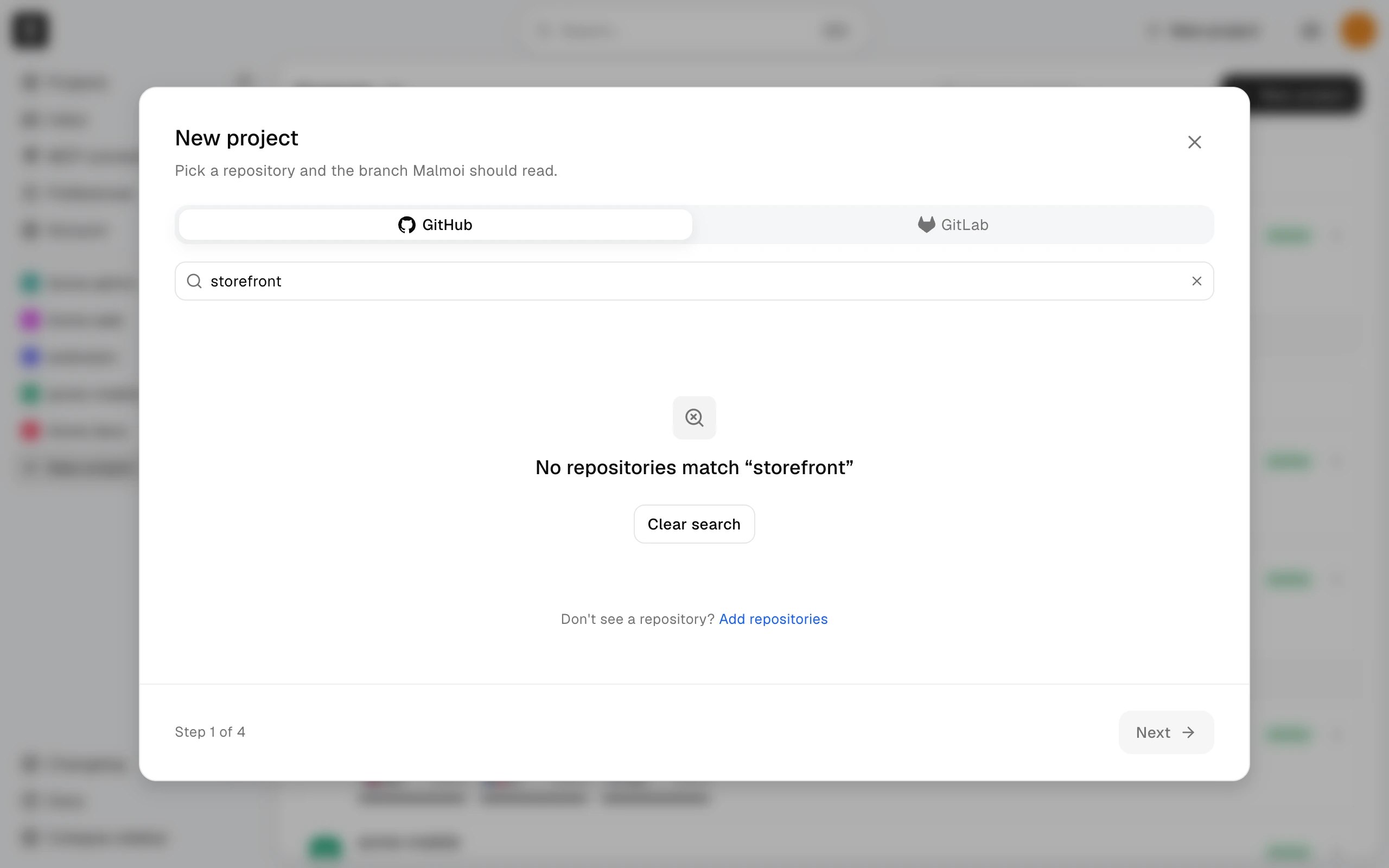
When you create a project, the first step lists only the repositories the GitHub App can access. If a search finds nothing, the app hasn't been given that repository yet.
- Below the list, choose Add repositories. GitHub opens the app's installation.
- Under Repository access, add the repository and save.
- Come back to Malmoi; the repository now appears in the list.
If the app is no longer installed on any of your accounts or organizations, the first step shows Install GitHub App again; install it from there.
Resolve workflow failures
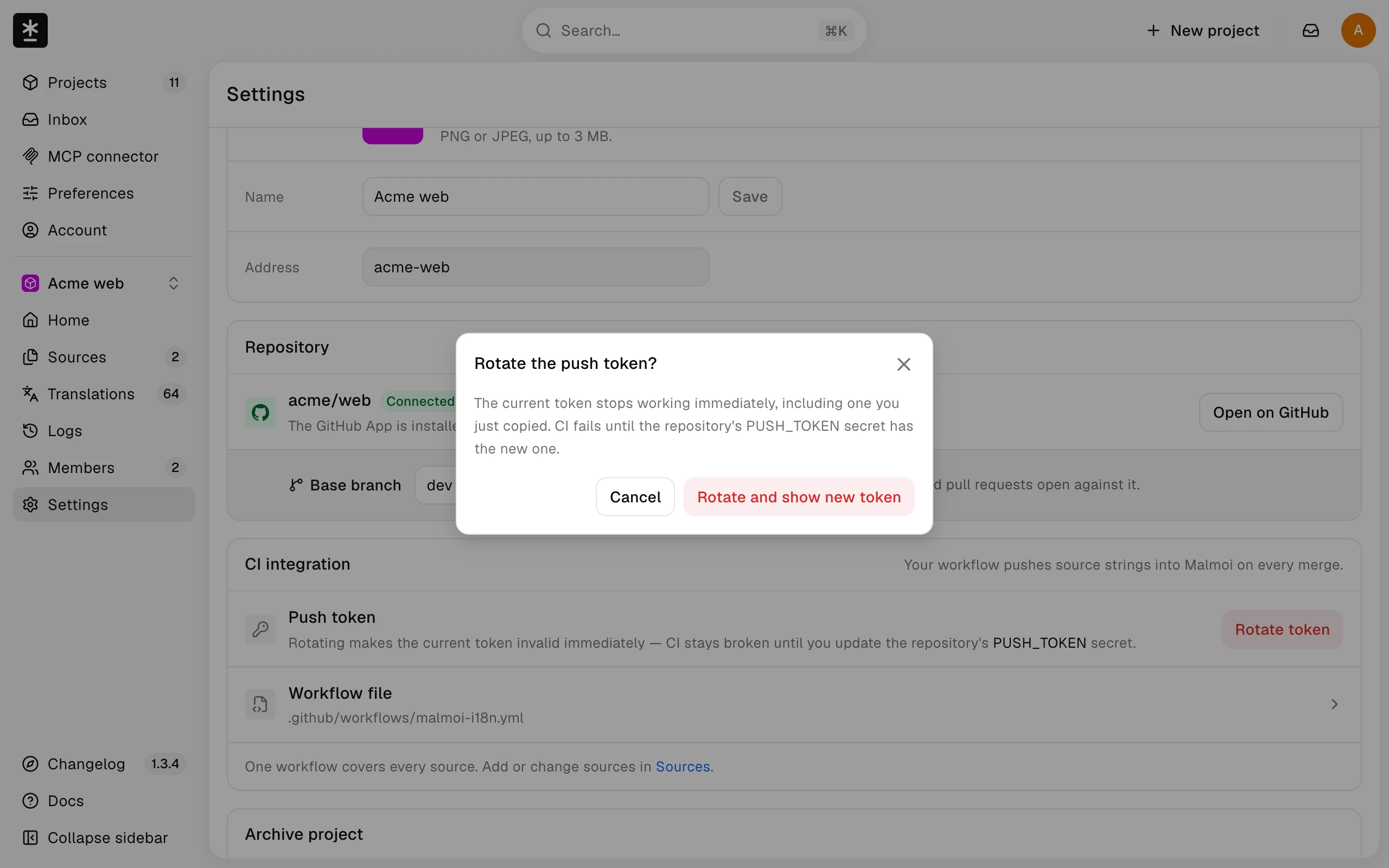
Check the Actions log for the generated workflow path, PUSH_TOKEN, allowed actions, and the selected base branch. A missing installation or action policy can stop a run before the request reaches the project. A 401 means the token is wrong or was rotated:
- In project Settings, choose Rotate token under CI integration.
- Confirm with Rotate and show new token, then copy the new token. It is shown only once, and the old push token stops working immediately.
- Paste the new token into the repository's
PUSH_TOKENsecret, then run the workflow again.
Resolve rejected updates
A 409 can mean the project is archived, the project or source does not match, the format does not match, or the commit is stale. A 400 means the files sent by the workflow or configured file set failed validation. Read the reason in the workflow run log in GitHub Actions before changing the project configuration.
If the run log shows deferred, the update is held, and Logs shows it as Held. If saved edits are unsent, publish them and run the workflow again. With open-pr, a Malmoi pull request is still open: merge or close it. With pr-check-failed, Malmoi couldn't check GitHub; run the workflow again later.
If Publish is disabled, there may be nothing unsent (“Nothing to send — every edit is already sent.”), the repository may not be connected, the project may be archived, or Sync may be running (“Publishing is currently unavailable.”). See Publish your changes for the editor path. Project owners can fix the connection or wait for Sync.
A commit containing [skip-malmoi-i18n] is skipped; read that result in the workflow run log.
What happens next
Use the reason shown in the workflow run log to choose the matching repair. For repositories on another host, see Troubleshoot GitLab.