Account and preferences
Preferences
Choose Malmoi's screen language, time zone, and light or dark theme. Your projects' translation languages do not change.
Before you sign in
The public pages and the sign-in and invitation pages show the current language at the right end of the footer.
- Choose the language name in the footer, for example English.
- Pick a language from the menu. Each one is listed by its own name, such as Español. The page appears in that language.
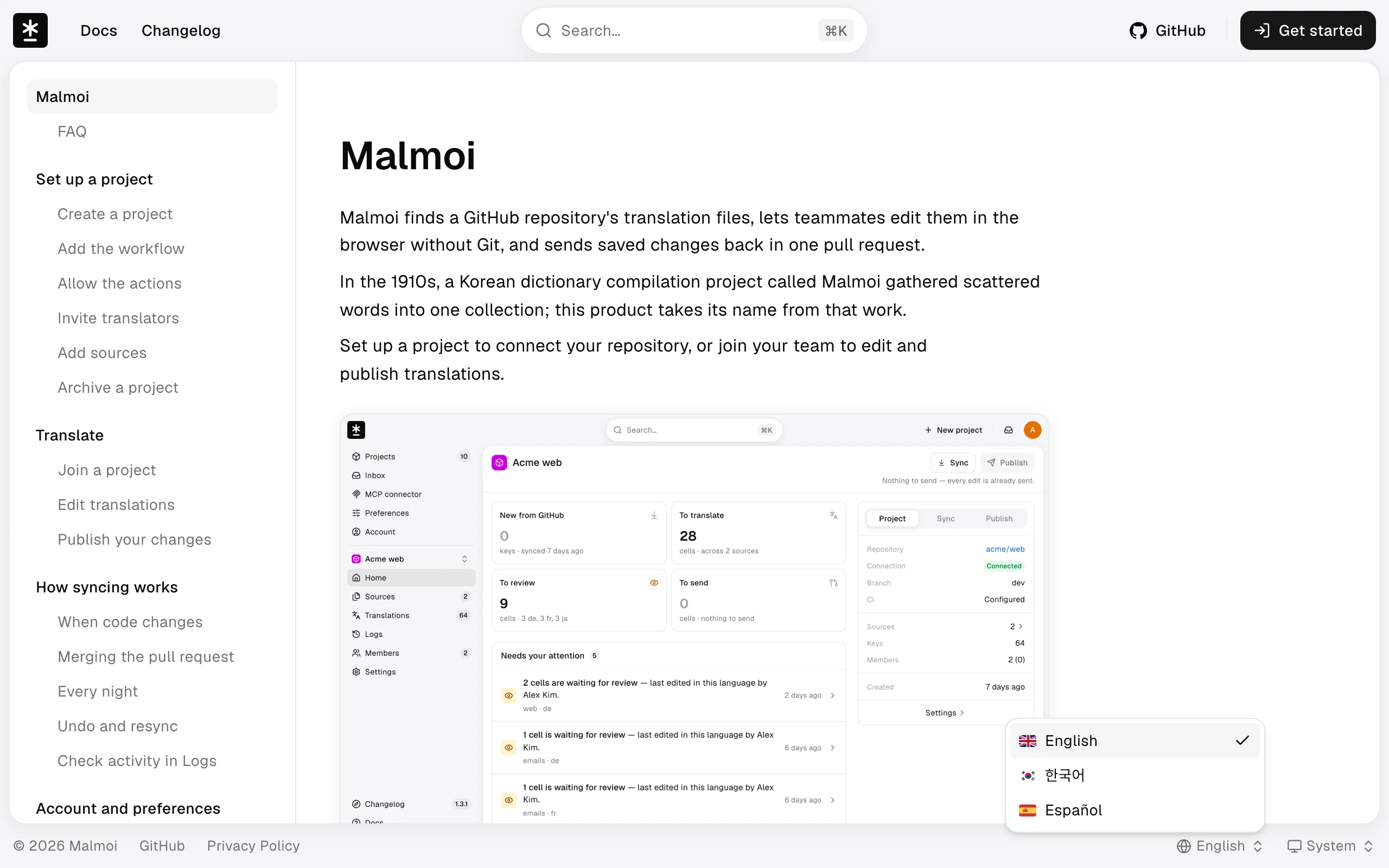
Malmoi remembers the choice on this device. If you're already signed in, the choice is also saved to your account.
If the change fails, Malmoi shows We couldn't change the language. Try again. and keeps the current language.
In Preferences
Before you start: Open your avatar menu at the top right and choose Preferences.
- In the Language card, open the menu and pick a language. There is no Save button; the change applies right away.
- Malmoi switches every screen to the new language. The choice is saved to your account and to this device.
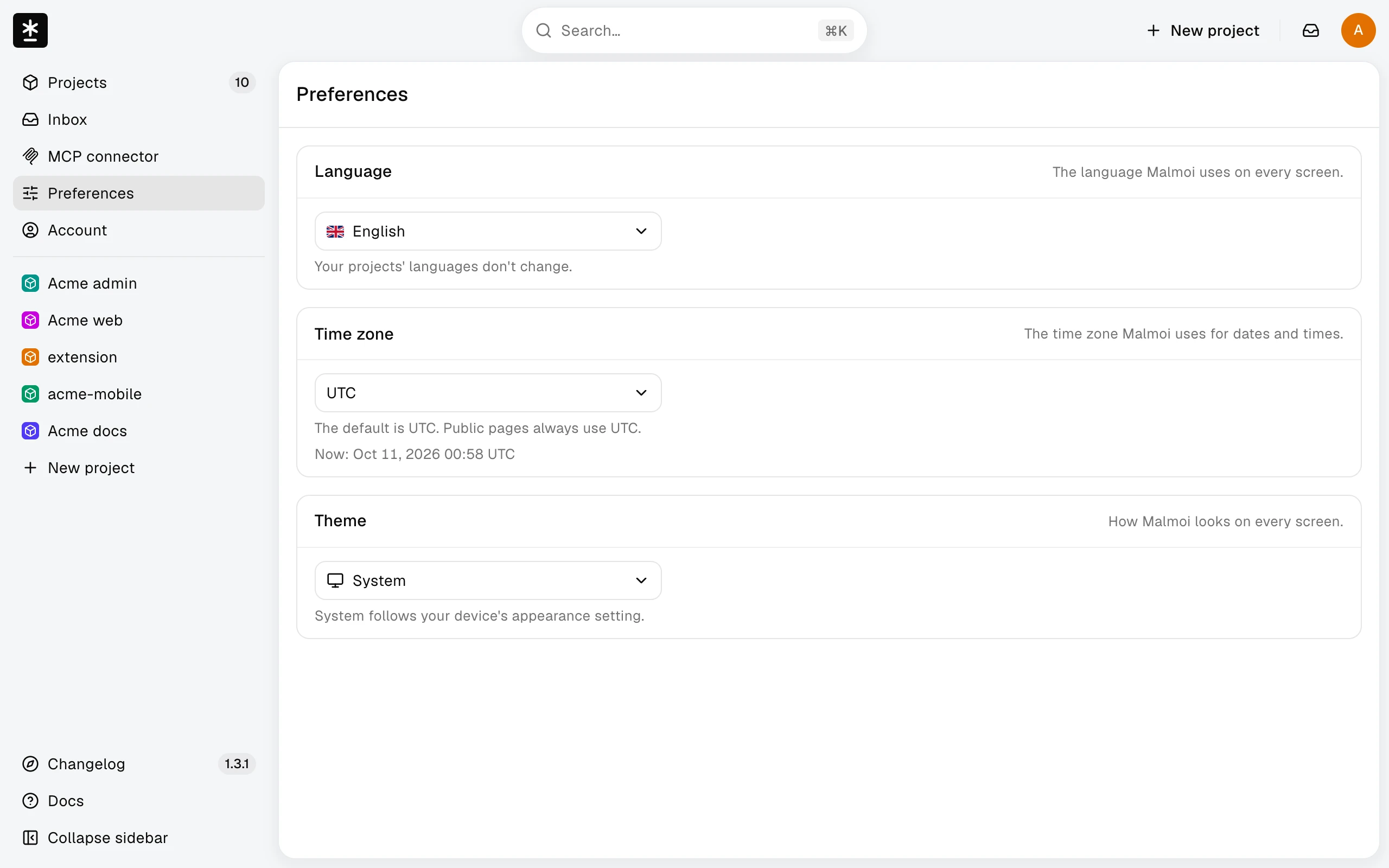
If the change fails, the card shows We couldn't change the language. Try again. and the menu goes back to the previous language.
Which language you see
Malmoi uses the first of these that applies:
- The language saved to your account, while you're signed in. It follows you to every device you sign in on.
- The language last chosen on this device.
- English.
Malmoi doesn't read your browser's language setting, so your first visit is always in English. After you sign out, the device keeps the language you chose last.
What doesn't change
The interface language doesn't touch your projects. The language columns in Translations, the base language of each source, and the files Malmoi publishes stay the same. The Language card says so too: Your projects' languages don't change.
This guide follows the interface language and is available in all three languages. Its screenshots show the English interface. The Privacy Policy is written by whoever runs the site. On mal-moi.com it is available in English and Korean, and with Spanish selected it appears in English.
Choose a time zone
Malmoi shows dates and times in UTC by default. Choose another time zone if you'd rather read them in your own.
Before you start: Open your avatar menu at the top right and choose Preferences.
- In the Time zone card, open the menu and pick a time zone. The first entry is
UTC; the others show their offset and name, such asUTC+9 · Asia/Seoul. There is no Save button; the change applies right away. - Check the line under the menu. It shows the current time in the zone you picked, such as
Now: Oct 5, 2026 08:10 UTC+9. Times across Malmoi, including Logs, now use that zone, and each one shows its offset.
The time zone is saved to your account, so it is the same on every device you sign in on. It isn't saved in a cookie. Public pages, such as the changelog and the Privacy Policy, always use UTC, even when you're signed in.
If the change fails, the card shows We couldn't change the time zone. Try again. and the menu keeps the previous time zone.
Choose a theme
Malmoi follows your device's appearance setting (System) by default. Choose Light or Dark to set it yourself.
Before you start: Open your avatar menu at the top right and choose Preferences.
- In the Theme card, open the menu and pick System, Light, or Dark. There is no Save button; the change applies right away.
- Malmoi switches every screen to the new theme. With System, Malmoi changes between light and dark whenever your device does.
Malmoi uses the theme saved to your account while you're signed in, then the theme last chosen on this device, then System, which follows your device's light or dark setting, so your first visit matches your device. The choice is saved to your account and to this device, so after you sign out, the public pages on this device keep your theme. You can change the theme only in Preferences; the footer has no theme menu. The screenshots in this guide always show the light theme.
If the change fails, the card shows We couldn't change the theme. Try again. and the screen goes back to the previous theme.
What happens next
Return to your projects. Your next sign-in on another device uses the same language, time zone, and theme.