Translate
Edit translations
Open the translation screen, find the text you want to translate, edit it in each language, and save before publishing.
Before you start: Join a project and choose Translations in the project navigation. On a narrow screen, such as a phone, the navigation is hidden: choose the menu button next to the logo to open it, and it closes when you pick a page.
Find a key
The key list is on the left. Each row is one piece of text in the app — a key — and shows its source text followed by its key name. Select a row to open its translations in every language on the right. Use the search box above the panels to find a key by its name, its source text, or a translation.
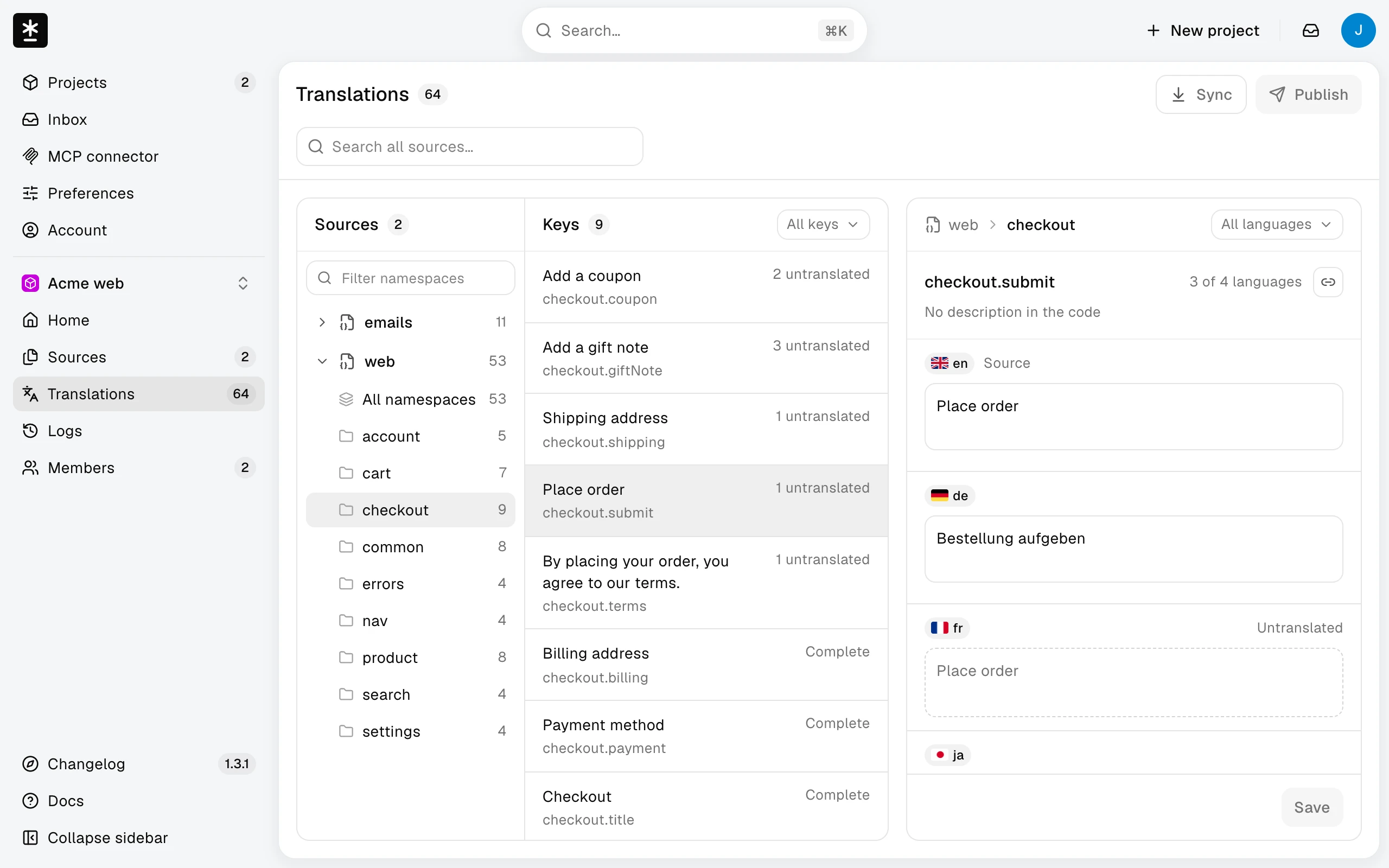
In the key list, the arrow keys move between rows and Enter opens the row; Tab moves past the whole list in one step.
When the screen is too narrow for both, the key list and the translations take turns. Select a row to open its translations, and choose Keys at the top left to go back to the list. Going back keeps the key selected, your unsaved text, and your place in the list, and the page address doesn't change; select the same row again to continue where you left off. The search box and the sources button stay with the list.
The Sources panel sets which keys the list shows. Select All namespaces under a source to list all of its keys, or select a group to list only that group. The filter at the top right of the key list shows its current choice: All keys, Incomplete, Needs review, Unsent, or New from GitHub. Needs review marks translations whose source text changed; it is not an approval step. Selecting a group keeps the filter, and changing the filter keeps the group. The filter narrows only the key list; it doesn't change the numbers in the Sources panel.
Search looks through every source in the project. While you search in a project with several sources, All sources appears at the top of the Sources panel, and the list shows each key's source before its name. In a project with only one source, use All namespaces to search the whole source. Each source and group also shows how many of its keys match the search, and groups with no matches are dimmed and can't be selected. Select All namespaces under a source, or a group, to narrow the results to it, or All sources to search everywhere again; typing a new search always searches everywhere. If you select a key from another source, the screen moves to that source. Clear the search to go back to the group of the key you selected. When nothing matches, choose Search all sources to widen a narrowed search, or Clear search. Clear filters sets the filter back to All keys and keeps your search text.
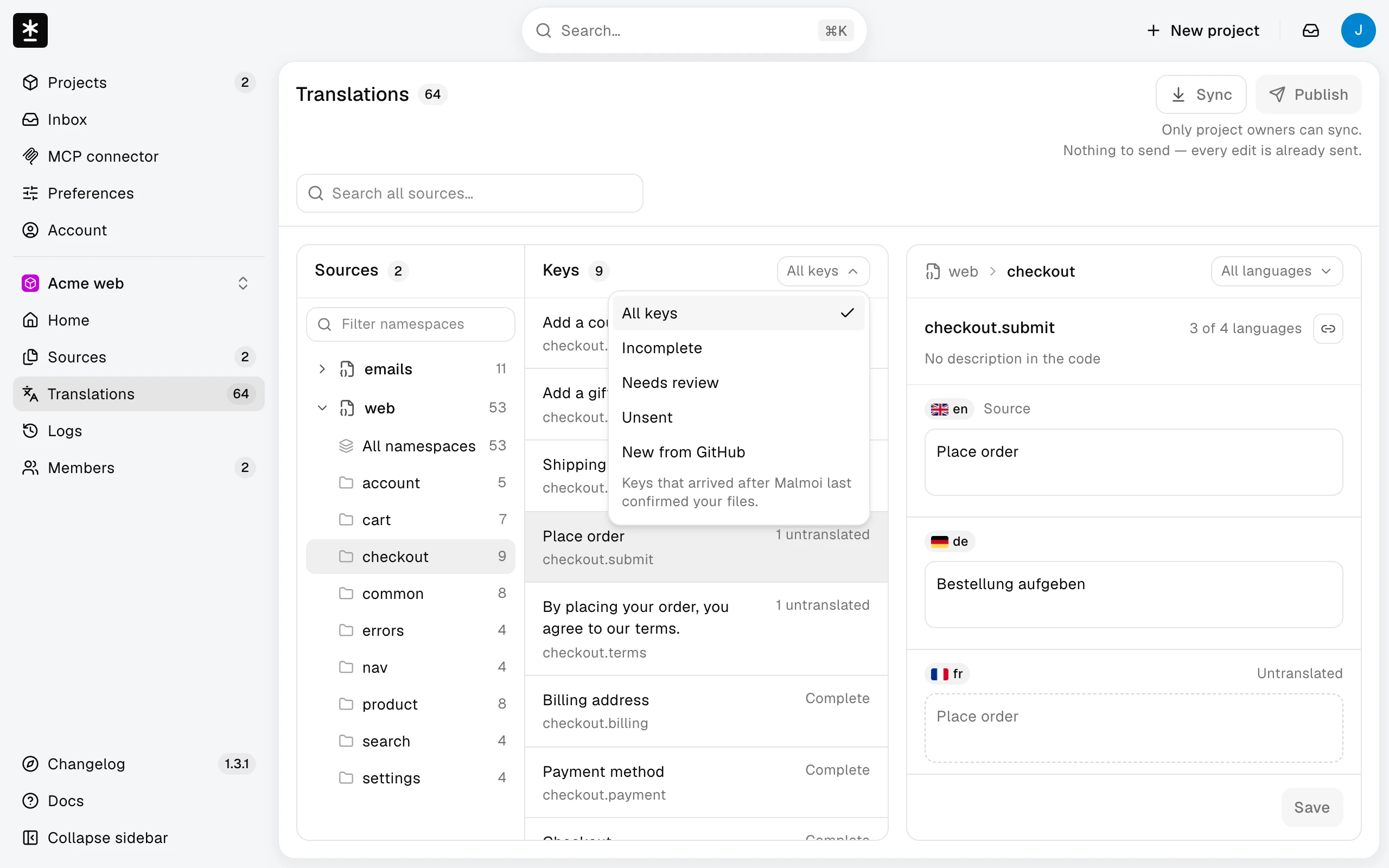
Find text across your projects
If you don't know which project contains a piece of text, use the search in the middle of the header. Signed in, you can search your projects, Malmoi's pages, your projects' text, and the docs from any page, including the docs. Without signing in, search finds the docs only.
- Choose Search…, or press Cmd+K on macOS or Ctrl+K on other platforms. The shortcut does nothing while a dialog or menu is open. In a text field, choose Search… instead.
- Type at least two characters to search key names, source text, and saved translations across projects you belong to. The Keys group shows the key name, project and source, and the matching text; a matching translation also shows its language code.
- Select a result, or use the arrow keys and press Enter. The search closes and opens Translations with that key selected and visible. You can edit and save it as described below.
Key results exclude archived projects and sources, sources that haven't finished their first sync, and text or languages removed from the repository. Key search matches the whole phrase you type without regard to case and uses its first 200 characters. Projects, Pages, and Docs match every word you type, in any order. Each group shows up to five results; narrow your text if the one you need isn't there.
If part of the search fails, a line under the search box says which part failed and how to try again, and the other groups stay usable. If your session ended, sign in again to search your projects; the docs remain searchable.
With an empty search, you see previews of Projects, Pages, and Docs. Pages takes you to screens in Malmoi, such as a project's Translations. Projects includes archived projects, while key results do not. Choose Go to your projects to see all of your projects, or Go to docs to open the docs. Docs searches guide titles and text and opens the matching section. Escape closes the search. Malmoi doesn't keep your search text in history or browser storage.
See what needs you across projects
Inbox lists what needs your attention in every project you belong to, so you don't have to open each project's Home. Open it with the inbox button between the divider and your avatar at the top right, from Inbox in the sidebar, or from your avatar menu. The button is also there on the docs, changelog, and privacy pages while you're signed in. When something is new since you last looked, the button shows how many items, and above nine it shows 9+; Inbox in the sidebar shows the full number.
- Choose the inbox button, or open Inbox in the sidebar to see the same items on their own page, one card per project. Items are grouped by project, and the project with the newest item comes first. You see sources whose last sync failed or was only partly synced, text waiting for review, languages that have no translations, and unsent edits. Project owners also see projects that still need setup.
- Select an item. A sync problem opens Sources, where you can read why; only project owners can try the sync again. The other items open Translations with the matching filter, and setup opens the project's Settings.
- Close the list, or leave the page. Opening the list or viewing the page marks everything in it as seen. The number on the button clears when the list closes; viewing the page clears both numbers right away, and new items stay marked until your next visit. If the list doesn't load, choose Try again.
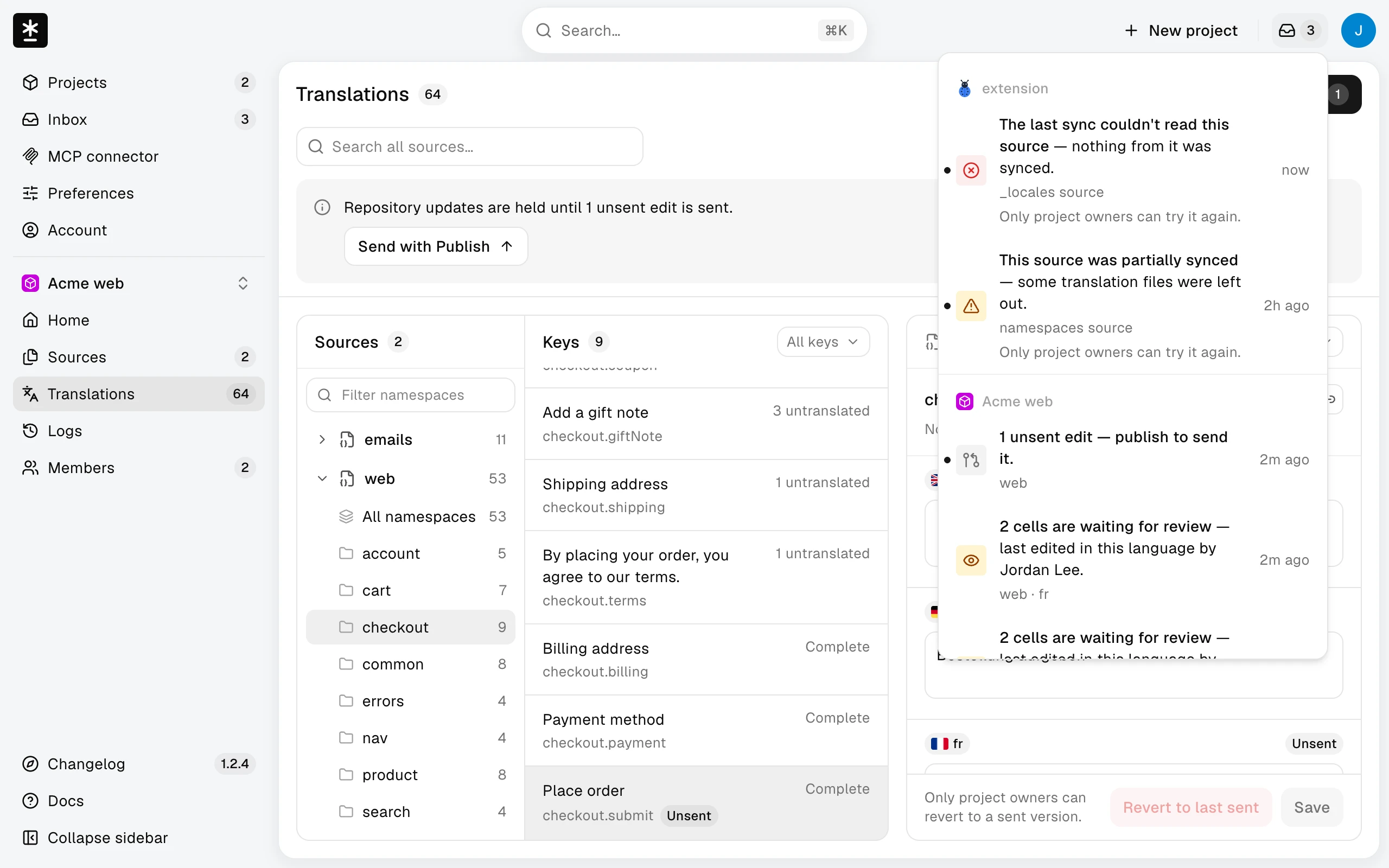
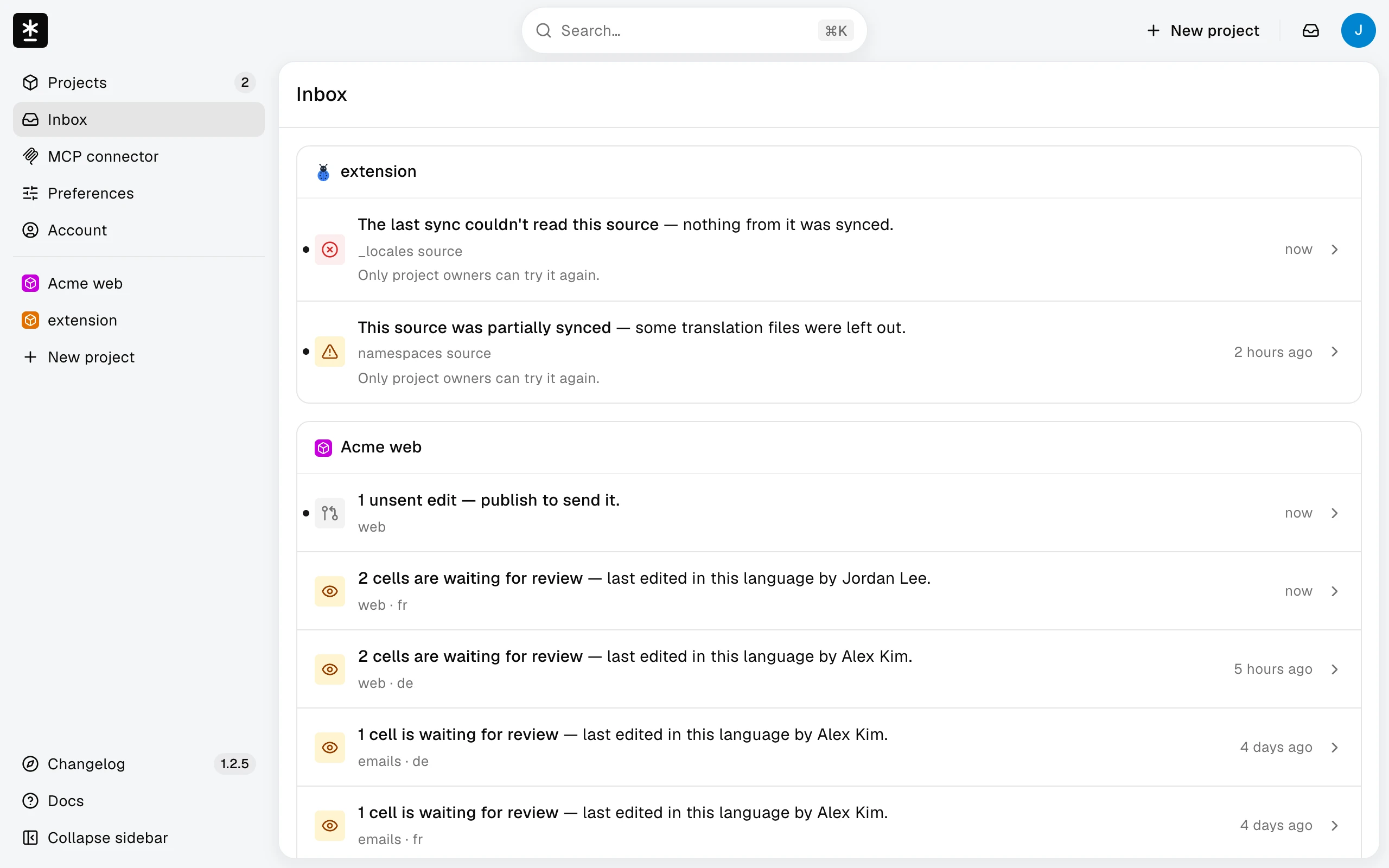
An item counts again only when it is new or has changed since you last opened the list or viewed the page, and it leaves the list once it is resolved. Text waiting for review is always listed but never counted, because every sync from the repository would make it look new. When nothing needs you, the list and the page show Nothing needs you. Archived projects aren't included.
Edit and save
- Select a row in the key list.
- Type in the language fields.
- Choose Save, or press Ctrl+Enter or Cmd+Enter.
Saved confirms the save. Moving to another field does not save. Press Escape while editing a field to undo what you typed in that field. If any language fails to save, none of them are saved — try again. If Malmoi says it could not confirm the save, check the current values before saving again. Saving clears Needs review for the languages you saved.
While a sync from the repository is running (a project owner's Sync or the nightly update), you can't save: Malmoi shows Syncing… with the latest time you can save again, and nothing is saved. Your text stays; choose OK and save again after the sync finishes. If a sync is already running when you open Translations, a note at the top says so; you can keep typing.
Some projects do not allow an empty translation. If Malmoi refuses an empty field, enter a value or press Escape in that field to undo the edit, then save any other changes. Nothing is saved while the invalid empty edit remains.
Leave unsaved changes
If you change keys, filters, or pages with an unsaved edit, choose Keep editing or Discard changes. Save is locked while Publish is running. Refreshing or closing the page can also ask the browser to confirm.
What happens next
Continue with Publish your changes.