Connect an AI agent
Sign in through your browser
Claude Code, Codex, and claude.ai can connect by signing in to Malmoi in your browser, so you never copy a token.
Connect your agent
- Add the server address to your agent. To copy it, choose Copy server URL on the Connected apps card of the MCP connector page, then use it in place of
SERVER_URLin the snippets below. They have no token in them. - Start the sign-in from your agent (see the next line under each snippet). Your browser opens Connect an app to Malmoi.
- If you aren't signed in to Malmoi, choose Continue with GitHub or Continue with Google. You come back to the same screen. If the account shown isn't yours, choose Not you? to switch.
- Check the app's name and the address under it. The app chose the name itself, so the address is what tells you which app is asking.
- Choose Expires in, Allowed actions, and Scope, the same choices as a personal token.
- Choose Authorize. Your browser hands the agent back its connection, and you return to the agent. Deny sends the agent away without a connection.
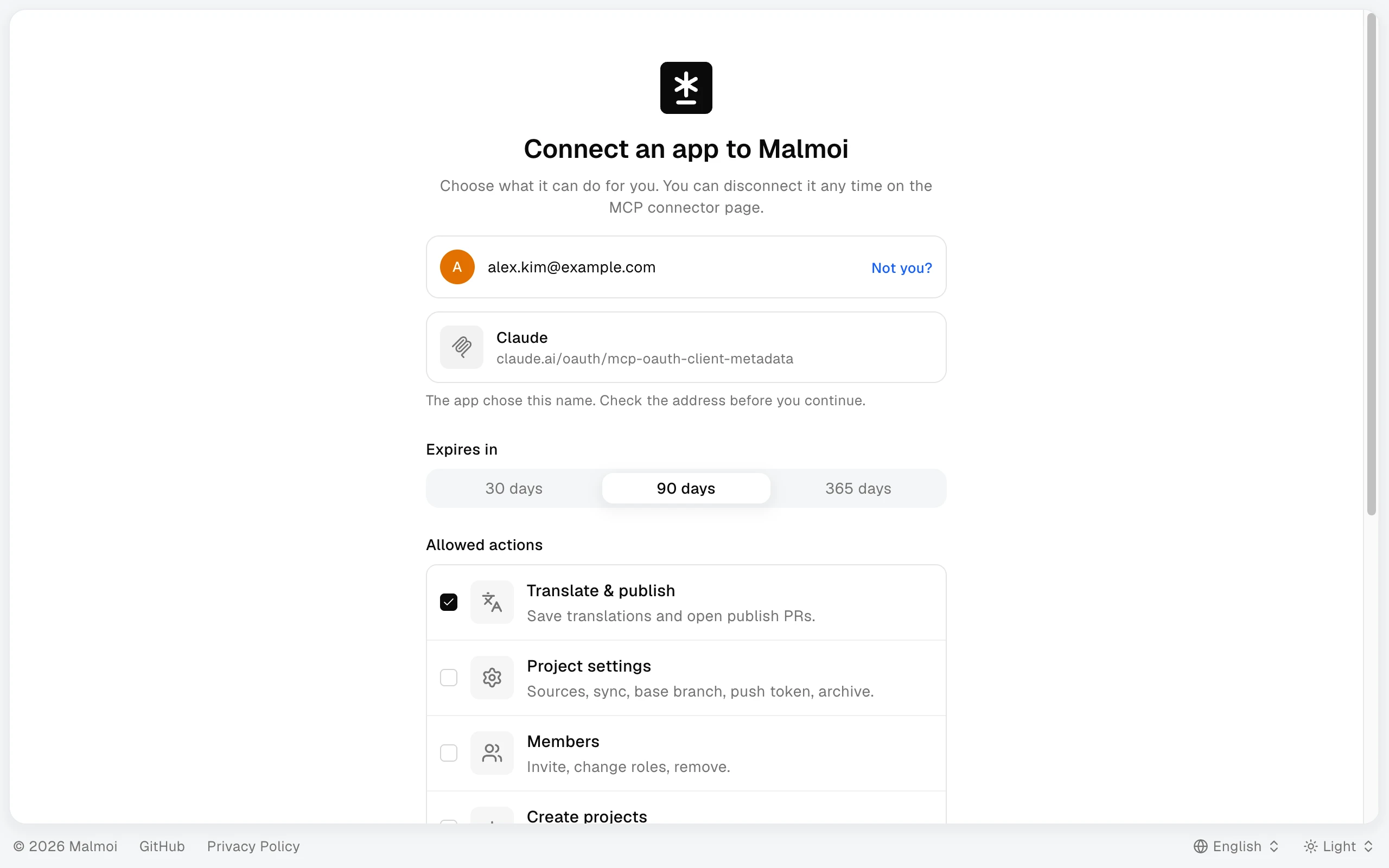
If you connected the same app before, the screen says so: authorizing again replaces that connection, and the app may be signed out on your other computers. A sign-in request stays open for 10 minutes; if it expires or was already answered, start again from the agent.
Claude Code
Add this to .mcp.json at the root of your project:
{
  "mcpServers": {
    "malmoi": {
      "type": "http",
      "url": "SERVER_URL"
    }
  }
}
Then run /mcp in Claude Code, pick the server you just added, and choose Authenticate. Your browser opens to sign in to Malmoi.
If the entry already has a headers line with a personal token, remove it first. While it is there, Claude Code keeps using the token.
Codex
Add this to your Codex configuration file:
[mcp_servers.malmoi]
url = "SERVER_URL"
Then run codex mcp login followed by the server name from the snippet. Your browser opens to sign in to Malmoi.
If the entry already has a bearer_token_env_var line, remove it first. While it is there, Codex keeps using the token.
claude.ai
claude.ai connects from its own settings, so there is no file to edit.
- In claude.ai, open Customize → Connectors, choose Add, then Add custom connector.
- Paste the server address you copied and give it a name, such as Malmoi.
- Choose Connect. A window opens to sign in to Malmoi and authorize, as in the steps above.
On a Team or Enterprise plan, only the owner of your claude.ai organization can add a custom connector; ask them to add Malmoi first, then choose Connect yourself. A Free plan allows one custom connector.
Connected apps
Every agent you authorize is listed under Connected apps on the MCP connector page, one connection per app, with its allowed actions, scope, when it was last used, and when it expires.
- Open MCP connector in the sidebar.
- Find the app. Two connections can have the same name; the address under the name tells them apart.
- Choose Disconnect, then Disconnect app.
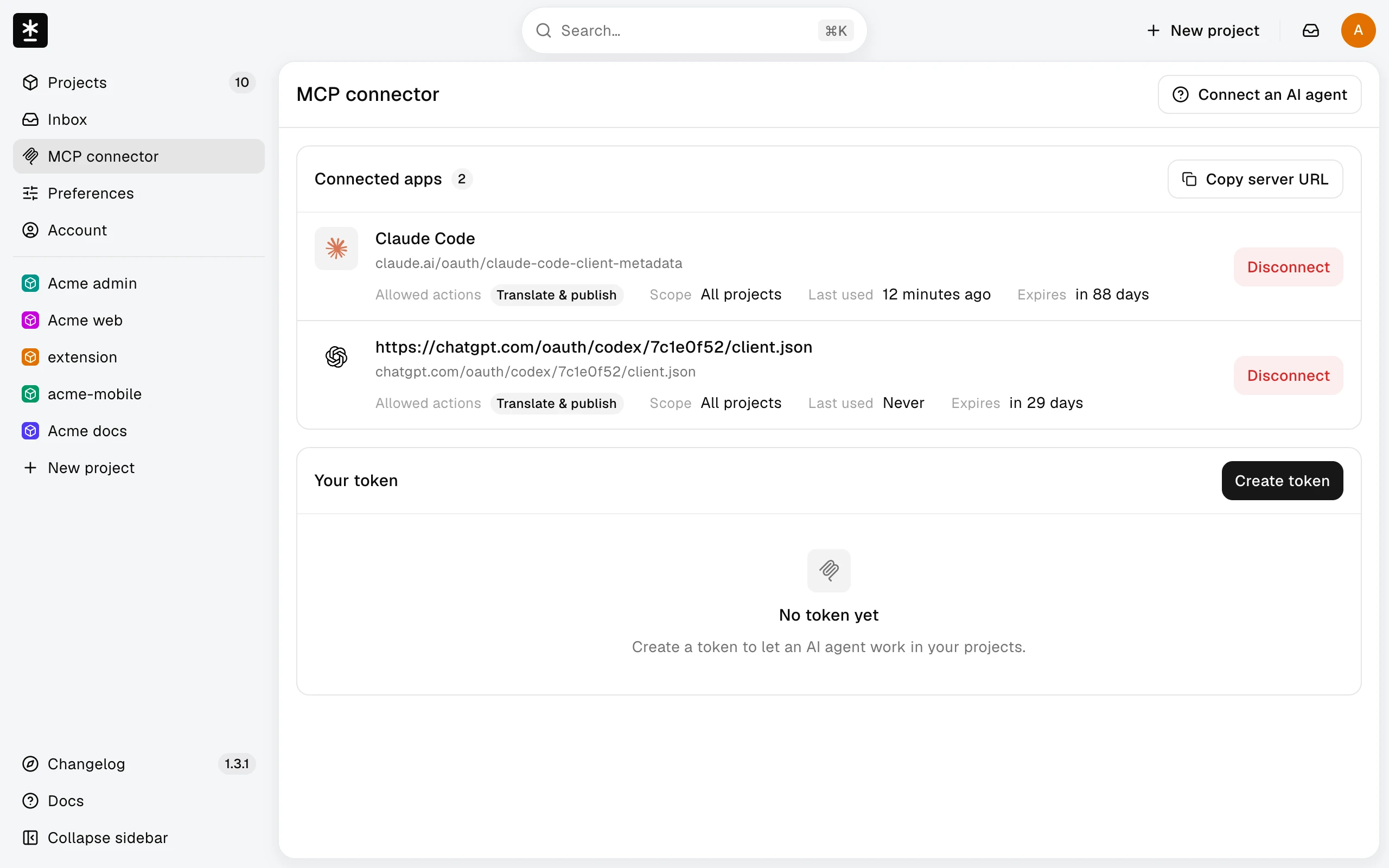
The app loses access from its next request. Your other apps and your personal token keep working. Removing the connector inside claude.ai doesn't disconnect it here; choose Disconnect to end it. A connection that has expired stays listed with Expired; authorize the app again from the agent to keep using it.
What happens next
Ask the agent to work in Malmoi. See What the agent can do for what it can change, and Example prompts for requests to start with.