How syncing works
Check activity in Logs
Use Logs to see project activity, inspect changes, and check the outcome of syncing and publishing.
Logs records project events with the actor, time, event type, and before-and-after details where the event provides them. The list is a snapshot; in an active project, choose Refresh to read it again. Archived projects do not show this button.
Find an event
- Open Logs from the project navigation.
- Narrow the list with the filters — All activity, Any date, Anyone, Any source, and Any result — and use Search logs.
Dates and event times use UTC unless you choose another time zone in Preferences. The date dividers and the date filter follow that time zone, and each event time carries its offset, such as 08:10 UTC+9. Result filters apply to syncing and publishing runs.
Under Automation, the Anyone filter offers CI for runs of your repository's workflow and Nightly for the nightly run. A night with no unsent edits appears under Syncs, not Publish: the nightly run updated the project from the repository, reported Up to date, held the update (Held), or failed (for example, it couldn't read the repository's branch). Some nights leave no event for a project, such as when no source is ready to compare or the run reached the project too late to start an update.
If filters hide every event, the list says so; choose Clear filters to see everything.
Read event details
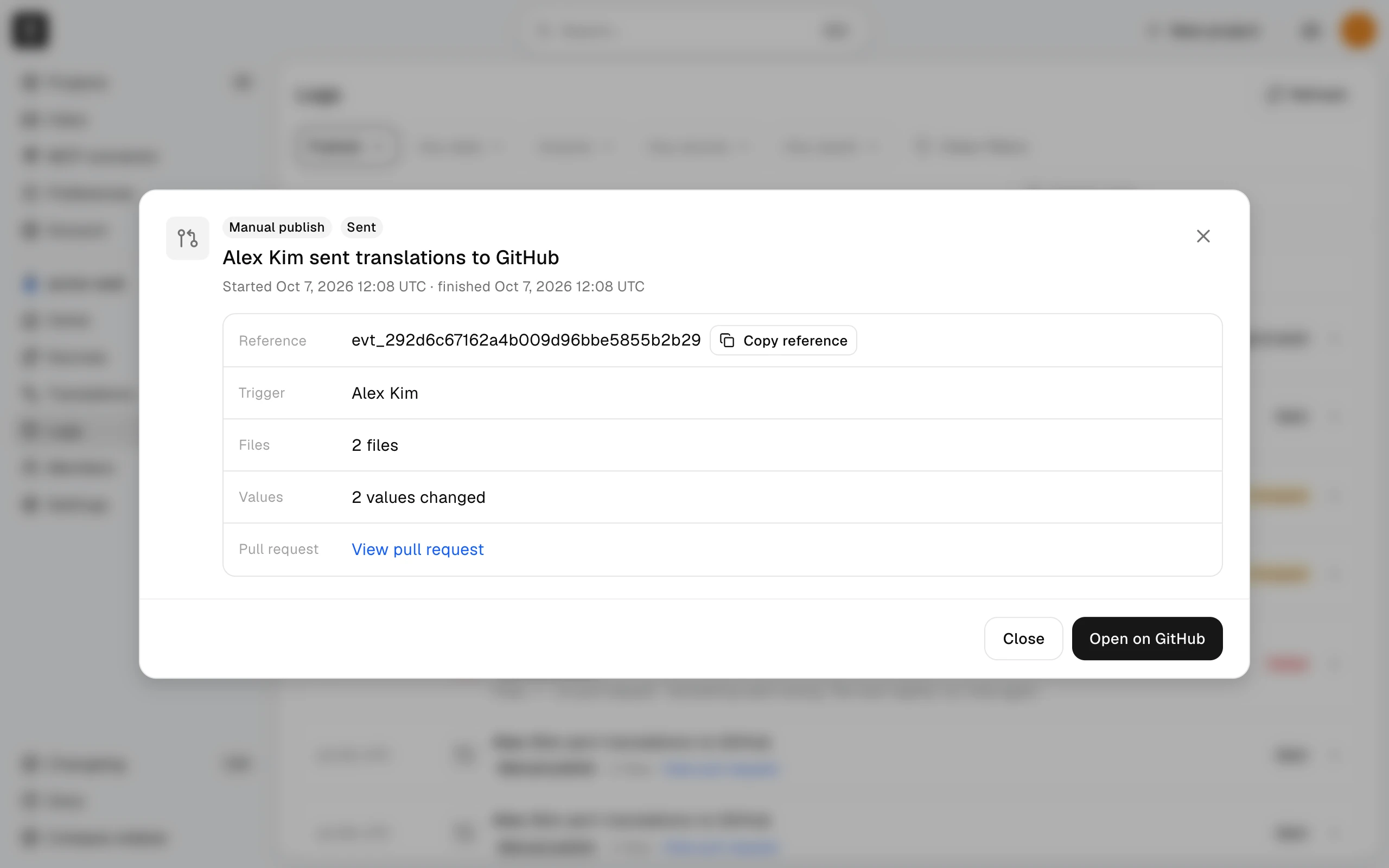
Open an event to inspect its details without changing the list filters. Translation events identify the key and source; sync and Publish events show their observed result. Under Values, a sync shows how many translations it changed, and a Publish shows how many it changed in the repository's files. A sync held by unsent edits shows them under Unsent edits; one held for another reason, such as a still-open change request from Publish (a pull request on GitHub), explains it under Held because.
Read archived history
Current members can read Logs after a project is archived. Archive blocks project writes and settings changes; it does not erase the activity history.