Account and preferences
Account
Manage your profile, sign-in methods, GitHub connection, and active sessions in Account.
Before you start: Open your avatar menu at the top right and choose Account.
Update your profile
- Edit your name and choose Save. Saved confirms the change.
- To change your picture, choose Upload and select a PNG or JPEG up to 3 MB. Your avatar updates after the upload succeeds.
The picture is resized automatically and the original file is not kept.
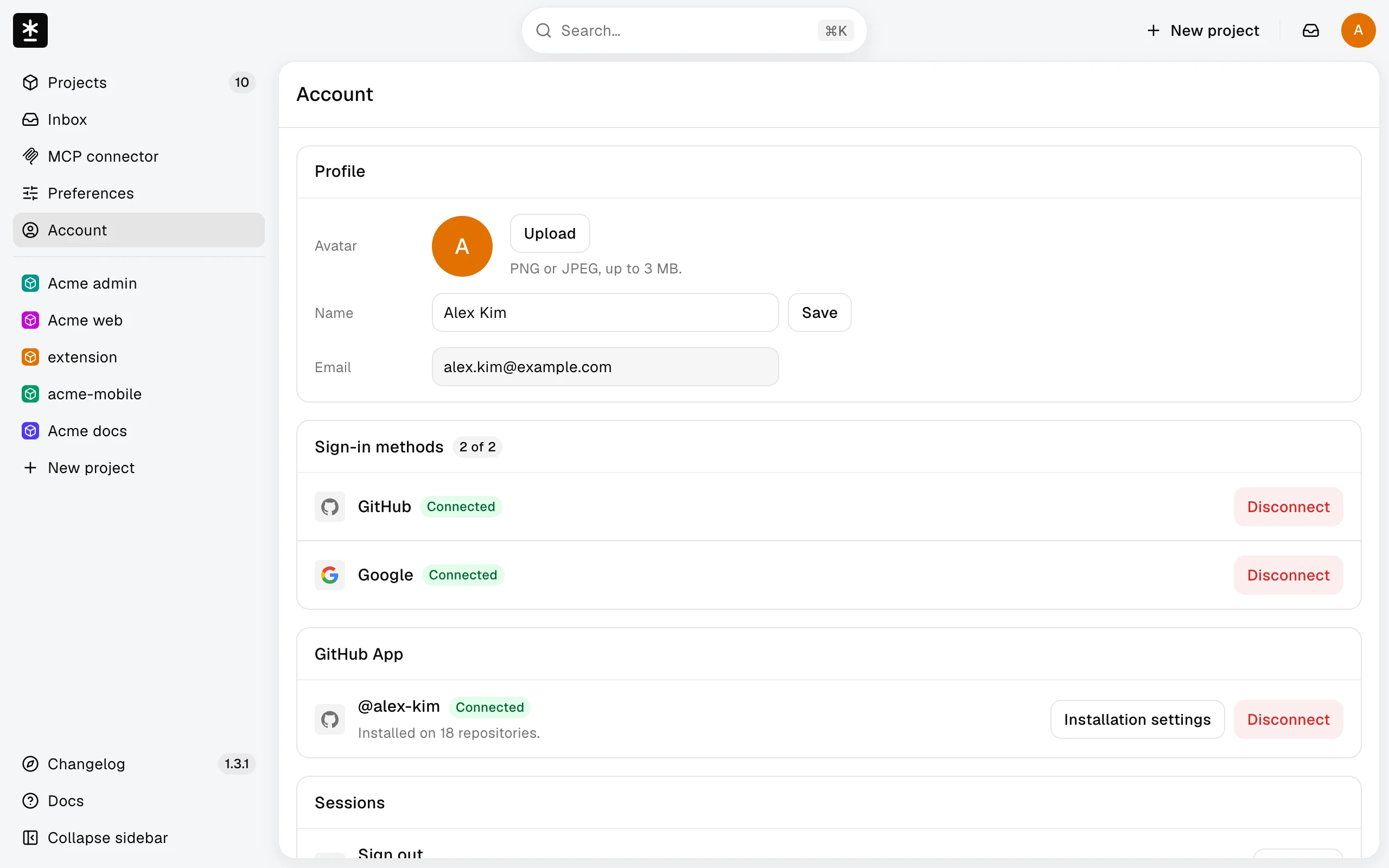
Manage sign-in methods
Choose Connect for another provider and sign in with the same email address. The last method cannot be removed; Account says This is your only way to sign in.
Manage the GitHub connection
Project owners use the GitHub App section to authorize repository selection and manage installation access. This is separate from signing in. Translators can skip this section.
If authorization expires, choose Reauthorize GitHub App. Projects that are already connected keep syncing while you renew this authorization.
Sign out of sessions
- Choose Sign out everywhere.
- Use the dialog's confirmation button, Continue to GitHub or Continue to Google. Malmoi chooses one of your connected sign-in methods; follow its sign-in confirmation.
This also signs out the device you are using.
What happens next
Return to a project after updating Account.